

For your website to appear online, its files must be inside the public_html folder of your hosting account. There are two ways to upload them:
1. File Manager
Best for a few files or for uploading a compressed archive.
- On the service page, click File Manager in the Quick Shortcuts.
- Open the
public_htmlfolder. - Click Upload and choose your files. To upload a whole site, upload it as a
.zipfile, then right-click it and choose Extract.
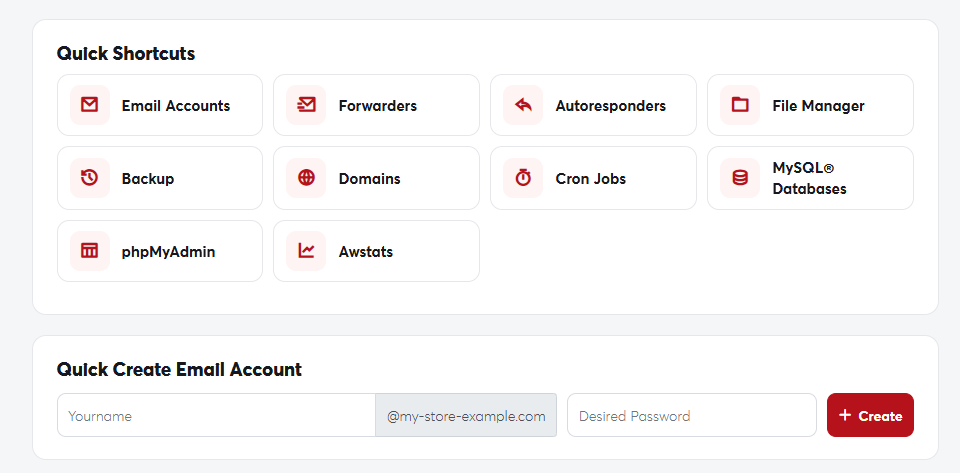 The service page's Quick Shortcuts, including File Manager
2. An FTP program
Best for large sites and frequent updates. Use a program such as FileZilla with these details:
- Host: your domain name, or the server IP address from your welcome email.
- Username / Password: your cPanel login, or an FTP account you create under FTP Accounts in cPanel.
- Port:
21.
Your site's home page must be named
index.html or index.php inside public_html.To install WordPress or other apps in one click, look for the app installer (such as Softaculous or WordPress Toolkit) in cPanel.