

Upgrading or downgrading your plan

When your site grows or your needs change, you can move to another plan without moving your files and without downtime.

Upgrade steps

  1. In Services → My Services, click your hosting service.
  2. Click Upgrade/Downgrade.
  3. Choose the new plan and billing cycle, then click Choose Product.
  4. Review the amount due and complete the payment.
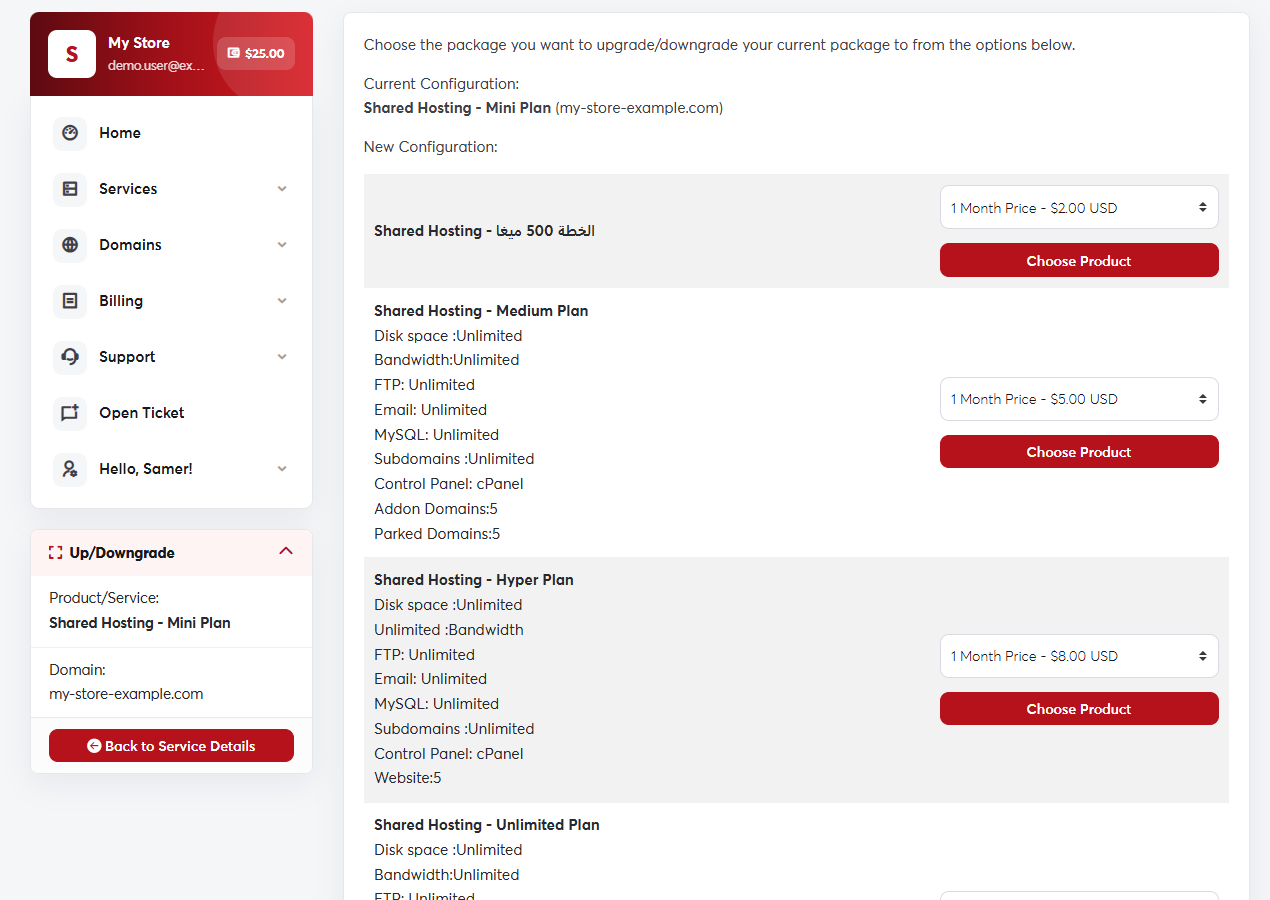
The Upgrade/Downgrade pageThe Upgrade/Downgrade page

How is the price calculated?

The difference is prorated for the time left in your current billing cycle, so you only pay the price difference for the remaining days. When you downgrade to a cheaper plan, any difference is added to your account as credit.

Upgrades are applied automatically as soon as you pay. Before downgrading, make sure your usage (disk space, number of websites and email accounts) fits within the new plan's limits.

Was this answer helpful?

Related Articles

How to order a hosting plan Hosting is the space on a server where your website's files, databases and email are stored. We offer shared hosting, reseller... Managing your hosting services From your client area you can follow all your hosting services: their status, renewal date and usage, and quick access to their tools.... Logging in to cPanel cPanel is where you manage your website: files, email, databases, backups, SSL certificates and more. The easy way: from your SAJJEL.NET... Creating an email account on your domain Every hosting plan lets you create professional email addresses on your domain, such as [email protected] or [email protected]. The... Uploading your website files For your website to appear online, its files must be inside the public_html folder of your hosting account. There are two ways to upload...