

Saved payment methods

You can save a card to your account so it's used for quick invoice payments and for auto-renewing your services and domains.

Manage payment methods

  1. In the side menu, choose Billing → Payment Methods.
  2. Click Add New Payment Method and enter your card details.
  3. Set the card you want as Default so it's used automatically.
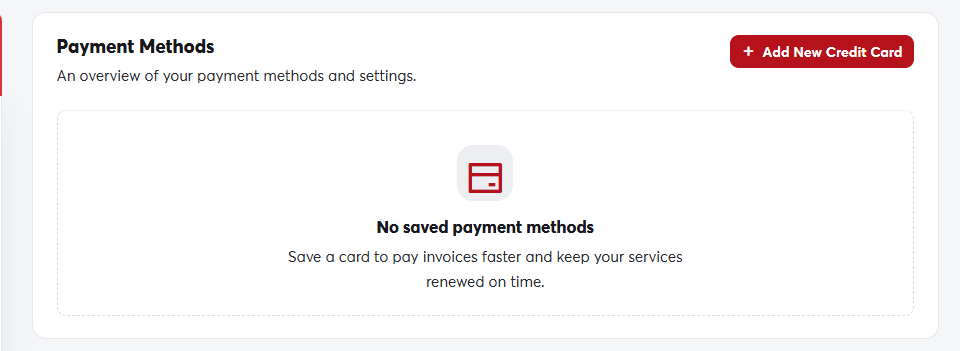
The Payment Methods pageThe Payment Methods page

On the same page you can edit or remove any card at any time.

Card details are stored encrypted by the payment gateway, not on our servers, and we only show the last four digits.
When your card expires, add the new one and remove the old one so that auto-renewals don't fail.

Was this answer helpful?

Related Articles

Your client area dashboard The client area dashboard is the first page you see after logging in. From it you can reach all your services, domains, invoices and... Updating your account details Your account details appear on your invoices and are used by default for new domain registrations, so keep them accurate and up to date.... Changing your password We recommend changing your password regularly, and straight away if you think someone else knows it. Steps Click your name in the side... Account security: Google sign-in and security question On the Security Settings page you can link your account to Google to log in with one click, and set a security question that we use to... Users and contacts If an employee or developer helps you manage your site, don't share your password with them. Add them as a user with specific...